Google Apps has officially eliminated the free version of Google Apps for business. The company warned that this was coming for quite some time. The good news is that we can still utilize GAFE (Google Apps For Education) at no cost.
This shouldn't be surprising considering Google's business modle. They want people to look at the adds that accompany online searches. If thousands of school children are growing up with the Google environment, the company will essentially grow a whole new generation of loyal customers. Don't misunderstand. There is nothing wrong with a company making a profit while providing great educational tools. In fact, that is the only way great tools are ever going to be brought to students. After all, without financial support of some kind, how many of us would actually go into teaching?


1/26/2013
iPads can email photos, PDF’s and a few other file types. This makes it possible to email items from student iPads to teacher email accounts. It is fairly straightforward to add a single email account to each student iPad. In fact, you probably already have an account that you used to register the iPads iTunes account. The problem is that every email will appear to have come from the same sender.
That’s it. You should now have a set of devices that can send out pictures, PDF’s and other items while still being relatively secure.
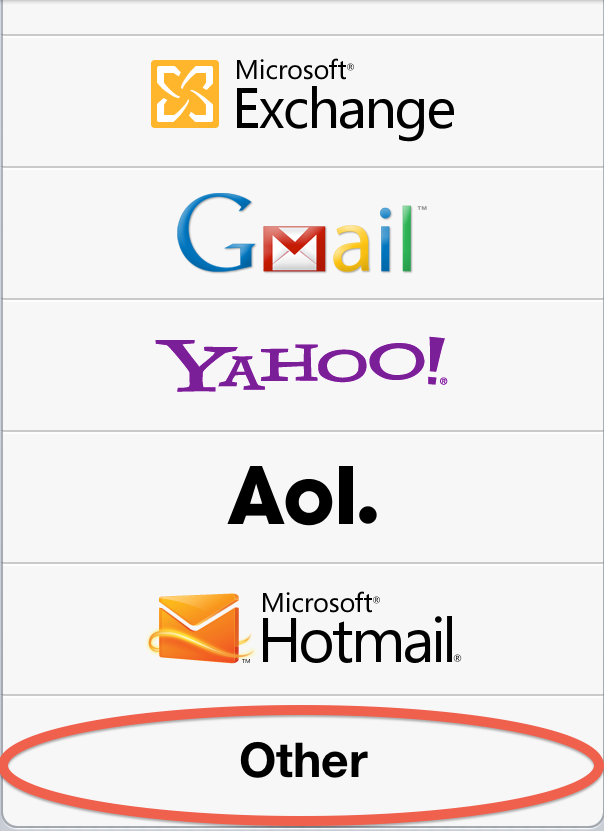 | It’s possible to set up an iPad account so that each email will appear to have come from the device from which it was sent. In this blog, I’m going to explain how to adjust an iPad’s email settings to make that happen. I’ll also show you how to shut down the iPad’s inbox and finally how to monitor the emails that students send out. To make this work, I recommend choosing “other”. You’ll see later why this is important. |
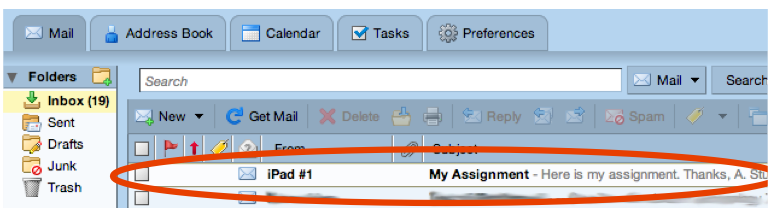
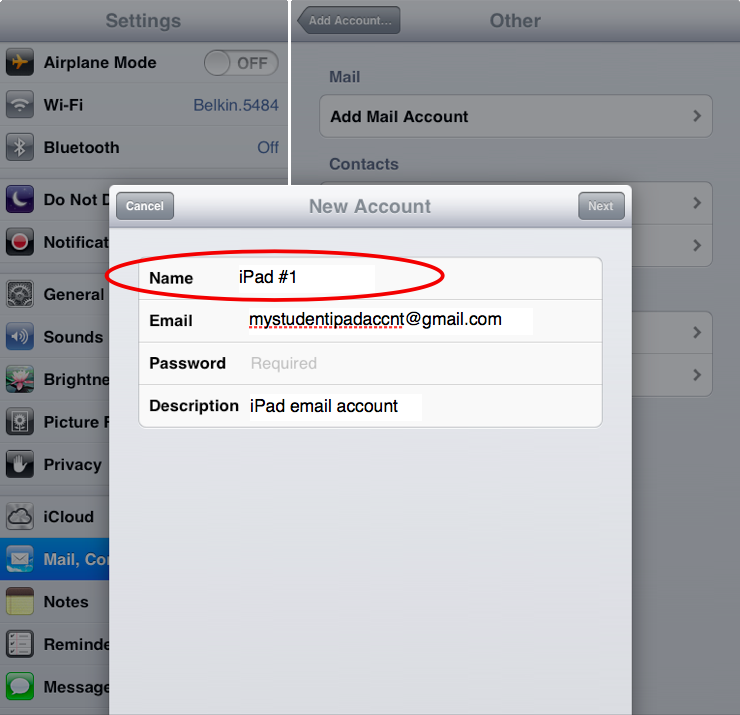
| When adding a mail account, you’ll always be asked for both a name and a description. The description is just for you, so it doesn’t matter what you put on that line. The name is for whoever is going to be receiving an email from that account, though. So, on the first iPad, you would enter the name “iPad #1”, or “Washington High iPad #1”. The recipient of any email coming from that device will see that name in the from section of the email. This way, you can be sure of knowing the origin of anything sent out from one of the schools’ devices. You can rest assured that any prank email can easily be tracked down to the student who signed out the device using the date stamp and the name on the email. |
 |
 *
*
The next step is to make sure your students don’t get access to the iPad account’s inbox. When you first set up an email account on an iPad, the device is supposed to start showing you any emails you’ve received. Normally, that’s exactly what you want. In this case however, you want each iPad to send email but not recieve it. This is going to take two steps.
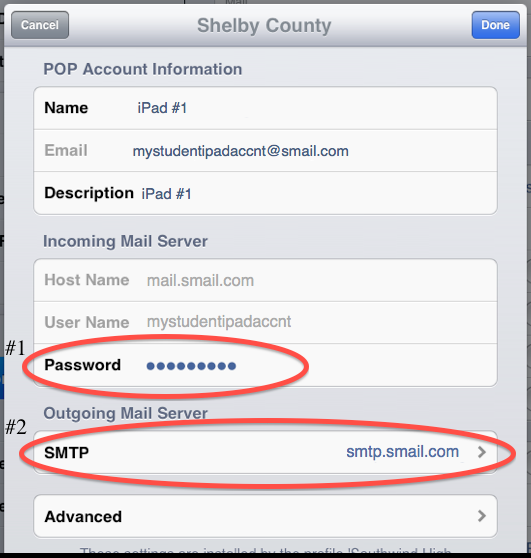
First, delete the account password and enter in something random. This is going to prevent the iPad from receiving any emails from this account. Second, enter in the account username and password in the “Outgoing Mail Server” section. That will give the iPad the ability to send mail through the iPad email account.
|  |
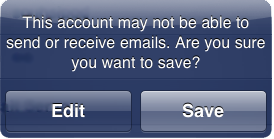
| The last step is going to allow you to monitor the emails that students send out. In the student iPad email settings, turn on “Always Bcc Myself”. This the only way you’ll be able to keep a record of which email was sent from which device. While you do have the sent folder in the email account you set up, that cannot tell you from which device it came. That bit of information is only going to be recorded if the student account receives a copy of the email. Be careful here. In many cases, you’ll have a email account quota. If you have hundreds of students emailing from these devices, you’ll reach that quota pretty quickly. It would be wise to get an account with a substantial quota limit like Gmail. | 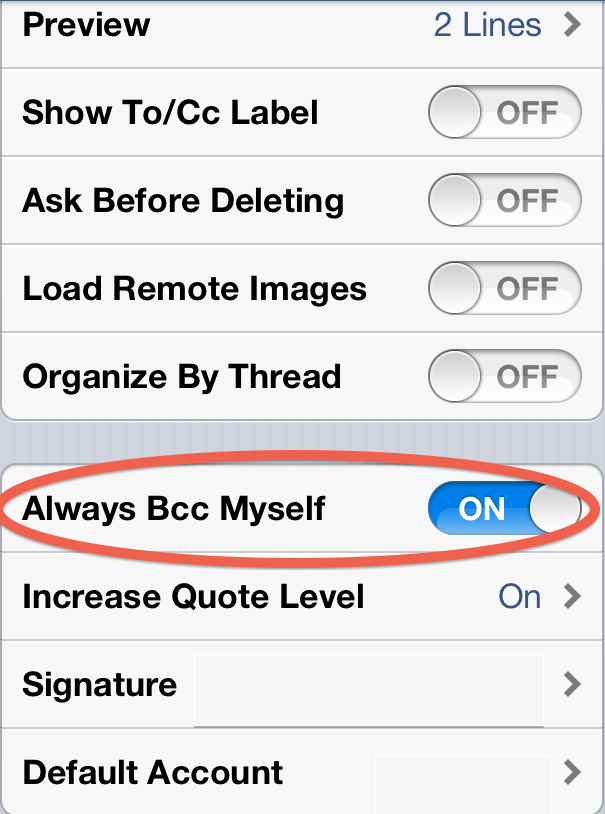 * * |
That’s it. You should now have a set of devices that can send out pictures, PDF’s and other items while still being relatively secure.
1/19/2013
Digital content distribution and collection

One of the basic decisions any educator has to make is how get materials (notes, handouts, lectures) to students and how to get assessments (tests, homework, projects) from them. Here, I’m going to write about two general technology options and then talk about two specific products.
Two general options
Website-
One of easiest and most simple ways to work with digital material is a website. The most basic sites simply consist of lesson plans and contact information. Just a little more work will produce a site with a class calendar and homework downloads.
Make a site for free:
General site builders
U Coz- http://www.ucoz.com/
Weebly- http://www.weebly.com/
Google sites- http://www.sites.google.com
K-12 specific
Class Jump- http://www.classjump.com/
Class connection- http://www.classconnection.org/
Educator Pages- http://www.educatorpages.com/
School Rack- http://www.schoolrack.com/
LMS-
This acronym stands for “learning management system”. This is a place to store all of your course content, online assessments and interactive tools like blogs and instant messaging. It works well to track student progress and guide participants through a course. Be warned- there’s a bit of a learning curve for instructors who have never worked with an LMS. However, once a teacher or trainer understands how to use these online tools, their students benefit tremendously.
Create an LMS for free:
Blackboard coursites- https://www.coursesites.com
MyiCourse- http://www.myicourse.com/
Openclass- http://www.joinopenclass.com/open/view/t1
Odijoo- http://www.odijoo.com/
Ninehub- http://ninehub.com/
Gaggle-
You won’t get anything free here. It’s popular enough and powerful enough to include it in a post that’s primarily about free resources for content distribution and collection, though.
With Gaggle, you’re going to get safe student emails, online file storage and great teaching tools. For a school district, this is going to be one of the safest ways to provide your students with email access. Emails and any attachments are filtered for inappropriate words and images. If something is caught (like “breast”), it gets sent off to a human who reads the word in context and decides to let it go through or flag it and assign consequences to the student.
One great thing about this company is that they will go into action if there is a threat to the student (think suicide, abuse or violence). They will contact authorities and get help for potential issues.
In terms of digital distribution, Gaggle is a powerhouse. They provide space to store documents of all kinds and have partnered with Zoho to allow students to work on documents together, just like Google Drive. They also provide a class calendar, assignment creation and social tools like blogs. The most interesting thing tool they have is for grading. After a student submits a document, his teacher can digitally write on it, highlight words, comment and grade that document. No need to hunt for a pen. No more worrying about papers getting lost. Its all online and works beautifully.
iTunesU-
You need Safari to create and manage courses through iTunesU and students will only be able to access courses on iOS devices (iPads, iPods, iPhone). If you use iPads for your students, you should sign up for an account. If not, this really isn’t for you.
That being said, this is a great way to distribute your digital material. Please note that it isn’t meant to assess your students’ learning. It is only a means of providing them with fantastic learning opportunities. Some of the great features include task checklists, interactive iBooks and the ability to take notes on specific sections of videos.
Aside from being able to create beautiful, interactive and effective content, this is probably the best way to conduct lessons involving an iPad. Your students will need instructions, explanations and tasks to complete for any lesson you do. They’ll also have to be able to find the app you’ll be using. With iTunesU, you can quickly and easily create a lesson which includes all of these elements. Teachers will find it easy to use and students will have clear instructions and an engaging lesson.
1/18/2013
More control over Google Apps... for a price
The latest Google update alert gave us the exciting news that Google Apps administrators can now define how long your various suborganizations will retain emails. You’ll be able to say that deleted teacher emails are kept for ever, but deleted student emails are only retained for a year.
This would be some very exciting news if it were free. It isn’t. You’ll need to have the Google Vault app which costs $5 per month/user. For a school, that’s pretty pricey. For now, administrators will still have to manage accounts manually.
This would be some very exciting news if it were free. It isn’t. You’ll need to have the Google Vault app which costs $5 per month/user. For a school, that’s pretty pricey. For now, administrators will still have to manage accounts manually.
1/15/2013
Google’s not Narcissus after all
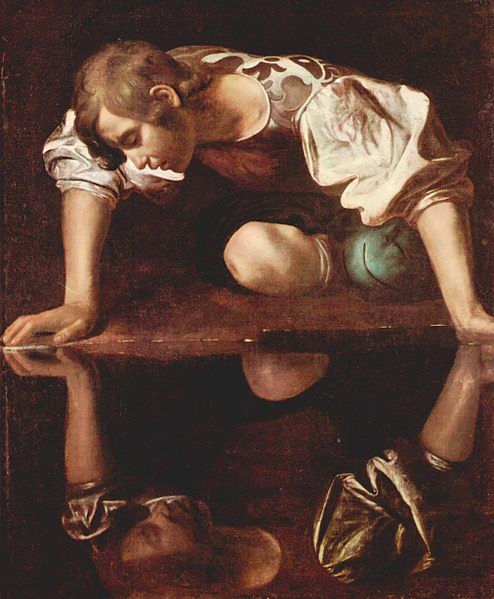
Google is usually seen as a selfish search giant. Common public opinion is that Google will serve up whatever is going to bring the company maximum benefit. Type in “maps” and you get Google maps; “images”, Google images; “books”, Google books. I’ve always thought that Google searches were a bit biased, though I still use them to bring me the best results.
Imagine my surprise when I discovered a hidden gem in the depths of Google’s digital interior. Try searching for “dead sea scrolls”. The top five hits have nothing to do with Google. A little more looking will reveal a couple of blog mentions on Google. Finally, you’ll notice the following link: Dead Sea Scrolls – Cultural Institute. This is a simply amazing site allowing you to read through these ancient texts without the need to study Hebrew.
While this little gem is awesome in and of itself, the implications are important. Here is a Google product with a relatively low search ranking. There is good evidence to infer that the biggest search business in the world isn’t focused totally and completely on itself.
1/14/2013
Log on and let them mold you

Two of the most powerfully formative forces for our personalities are our memories and the people with whom we surround ourselves. Until recently, that statement would have simply referred to the stuff in your head and your neighbors. For better or worse, the internet has changed that.
First of all, many of our memories have become externalized. To-Do applications, cloud services and search histories are some of the ways in which we record information so that we don’t have to worry about storing it in our most fallible human minds. Whether you see this as a miracle or tragedy, there is no doubt its all part of our modern world. What you may not have considered are the ways in which this could mold your personality.
“This is where I come from. This is who I am.”
Let’s start with how your search history influences your future searches for information. Google (and other search companies) really want to be able to help you find what you're looking for. To do that, they track you. Got a GMail account? Youtube? Drive? I do. By their own admission, Google scans all of your emails and searches for keywords and trends. They don’t care about your dirty laundry. They want to know what kinds of results to give you. In a way, that's great, since it can help you find what you want more quickly. It’ll bias you though. People who click on left-leaning news links will get more left leaning commentary. Conspiracy theorists will get more fodder for their fantasies. Essentially, when you’re signed in, you allow Google to exaggerate some of your beliefs.
“Truth are us.”
The other issue here is that we are what our tribe tells us to be. There is great documentation that the best way to change public behavior is to convince people that everyone is already doing the thing you want them to do. When you log onto your favorite social network (Facebook, Twitter, Linkedin, Edmodo, etc...) you’ll be submerging yourself into the culture of that network. The trends that you notice there will drive some of your behaviors. Unless you actively oppose a way of thinking or an attitude, it will almost inevitably make its way into your psyche.
So consider staying offline for certain chunks of time, like each weekend. Spend that time reading or chatting with family. The memories you get from those experiences will serve to balance out a lot of what’s going to creep into your mind while logged in.
1/09/2013
Blogger plus Drive = Awesome
 |  |
One of the great things about Google is that it uses largely the same platform for all of it’s services (Drive, Sites and Blogger). That means that you can use one service to create your content and publish it using the other service. I’ve mentioned this before here, but I thought it was worth mentioning again.
This post was not written in Blogger, but in Google Drive where I compose all of my posts. When I’m finished, all I need to do is copy and paste everything into Blogger and hit publish. The big advantage here are the editing tools that Google provides for you in Drive that are missing in Blogger. Specifically, I can add tables, move text around easily, change line spacing and format my document in ways that I wouldn’t otherwise be able to do. Google drive also makes working with images a breeze. If you’ve been using Blogger for a while and would really like to have more functionality, try creating your work in Google Drive and just using Blogger as a publisher. I think you’ll be really pleased.
7/28/2012
Psychologically sound PowerPoints
PowerPoint® presentations can be a challenge to put together. It can be even more difficult teaching someone else how to do a presentation well. There are literally thousands sites offering to show you how to make beautiful and effective slides. Unfortunately, none of that advice is backed by evidence.
A new study was published in July 17th of this year that finally provides evidence based recommendations for making an excellent presentation. The goal was to look at PowerPoint design in light of good brain science. To properly conduct the study, a list of best practices was drawn up and written as negatives. Instead of saying “speak clearly”, for example the study listed “mumbled” as one way a presentation could fail. I was tempted to copy and paste their “List of rules for each principal” (Table 1) and then translate back into a list of best practices, but even with proper citation, I thought it would be too close to plagiarism for my comfort.
There really isn’t anything surprising in that list. In fact, most of us follow these without without thinking about it. Here is a quick rundown of some of the most relevant or interesting:
1) Remember that your goal is to convey a message, not to be as creative as possible. Use standard fonts, bullets and terminology. Also use colors conventionally (red indicates a warning for example).
2) Keep your audience in mind. Your words should have all the connotations the audience expects them to have.
3) Use graphs properly:
5) Don’t use deep blue for fonts or to underline.
6) Keep red and blue from touching.
7) Only animate something if it helps convey your message.
8) Use decent sound and pictures. Grainy pics and low-fidelity sound is a bad idea.
9) Sudden changes in visuals or sound should only be used when you’re changing topics or to signal the end of your presentation.
10) Have an obvious end for the show.
11) Reveal bullet points one at a time.
12) Use 4 or less items per slide: (4 items in a list, 4 graphical units, etc.)
13) Your audience should be able to read every slide in under a minute.
14) Use grid lines on your tables.
15) If you’re going to use color to indicate numerical value, that’s fine. Never use hue, saturation or tone, though.
16) Be clear about what your presentation is actually about.
17) Explain complex graphics during your presentation.
18) If a slide element is important, make it prominent. If something is prominent, make sure it’s important to your presentation.
19) Center your illustrations.
20) Use warm colors to define the foreground.
21) If you’re providing geographical information (directions, locations, etc...) a map is usually necessary.
Like I said, there should be nothing shocking in this list. Still, it’s interesting to see best practices as defined by psychologists.
A new study was published in July 17th of this year that finally provides evidence based recommendations for making an excellent presentation. The goal was to look at PowerPoint design in light of good brain science. To properly conduct the study, a list of best practices was drawn up and written as negatives. Instead of saying “speak clearly”, for example the study listed “mumbled” as one way a presentation could fail. I was tempted to copy and paste their “List of rules for each principal” (Table 1) and then translate back into a list of best practices, but even with proper citation, I thought it would be too close to plagiarism for my comfort.
There really isn’t anything surprising in that list. In fact, most of us follow these without without thinking about it. Here is a quick rundown of some of the most relevant or interesting:
1) Remember that your goal is to convey a message, not to be as creative as possible. Use standard fonts, bullets and terminology. Also use colors conventionally (red indicates a warning for example).
2) Keep your audience in mind. Your words should have all the connotations the audience expects them to have.
3) Use graphs properly:
a) Graphs should be used for making comparisons.
b) Line graphs show trends.
c) Bar graphs show differences between specific values.
*If the labels are very long, a bar graph should be horizontal, not vertical.
d) Pie graphs show proportional differences.
e) Label your graphs and mark any axes clearly.
4) Keep pointless creativity out of your slides. If you’re presenting on the Olympics, don’t throw in pictures of kitties just because you think they’re cute.5) Don’t use deep blue for fonts or to underline.
6) Keep red and blue from touching.
7) Only animate something if it helps convey your message.
8) Use decent sound and pictures. Grainy pics and low-fidelity sound is a bad idea.
9) Sudden changes in visuals or sound should only be used when you’re changing topics or to signal the end of your presentation.
10) Have an obvious end for the show.
11) Reveal bullet points one at a time.
12) Use 4 or less items per slide: (4 items in a list, 4 graphical units, etc.)
13) Your audience should be able to read every slide in under a minute.
14) Use grid lines on your tables.
15) If you’re going to use color to indicate numerical value, that’s fine. Never use hue, saturation or tone, though.
16) Be clear about what your presentation is actually about.
17) Explain complex graphics during your presentation.
18) If a slide element is important, make it prominent. If something is prominent, make sure it’s important to your presentation.
19) Center your illustrations.
20) Use warm colors to define the foreground.
21) If you’re providing geographical information (directions, locations, etc...) a map is usually necessary.
Like I said, there should be nothing shocking in this list. Still, it’s interesting to see best practices as defined by psychologists.
7/26/2012

Edit Docs Offline
Originally Posted by Google: 24 Jul 2012 07:56 PM PDT
Scheduled Google Docs Update for July 31st
By the beginning of the school year, you'll be able to edit your Google docs without an internet connection. All you'll need is the latest version of Chrome and the Google Drive app from the Chrome store.
Another nice feature is the ability to preserve previous versions of documents. As you may or may not know, Google deletes any revisions older than 30 days or when there are more than 100 previous versions of the same document. By August, you'll be able to indicate that you want certain versions saved. This could be useful when curriculum mapping.
Scheduled Google Docs Update for July 31st
By the beginning of the school year, you'll be able to edit your Google docs without an internet connection. All you'll need is the latest version of Chrome and the Google Drive app from the Chrome store.
Another nice feature is the ability to preserve previous versions of documents. As you may or may not know, Google deletes any revisions older than 30 days or when there are more than 100 previous versions of the same document. By August, you'll be able to indicate that you want certain versions saved. This could be useful when curriculum mapping.
Subscribe to:
Posts (Atom)