Showing posts with label Google. Show all posts

5/05/2013

Interactive tutorials with Google

Google presentations are great for a lot of reasons. Unfortunately, they are designed to go from one slide to the next in a simple, linear fashion. There’s a way to make them interactive. This post tells you how to do just that.


Short instructions:
1) Create a presentation.
2) Completely cover each slide with a transparent box.
3) Link that box to the same slide on which it was placed.
4) Add small transparent boxes over the portions that will make your "buttons" interactive.
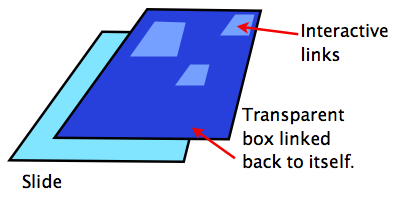


Long instructions:


Create your slides
First create the entire tutorial minus the interaction. This includes any interactive buttons or clickable objects. Also, make sure you add any animations or slide transitions before moving on to step two. I'll explain why latter. I suggest making the tutorial in something like Powerpoint first, then copying it over to Google Docs. Powerpoint is far easier to work with. You’ll be better able to concentrate on architecture of the tutorial and be able to troubleshoot with less hassle. Google Docs will convert Powerpoints into a Google presentation, so there really isn’t much more work creating the tutorial in a separate program.


Once the tutorial has been created, uploaded and converted, it’s time to add the magic. First, we have to remove a feature that Google built into presentations. Normally, when you click on a slide it will automatically move to the next slide. You can stop that from happening by covering the entire slide with a transparent box.

Cover each slide
Add the box by clicking on “Insert”, then “Shapes”, then choose the square. You'll get a pair of cross hairs that you can use to draw whatever size square you choose. Start drawing just outside the slide, then click and drag to create a shape large enough to extend beyond the borders of the slide. Next, change the fill to transparent. Leave the line. This makes the box easy to for you see and since the box is outside the boundries of the actual slide, no one else will notice them. Now, click on that box, then click on the link button. One of your options will be to link to a specific slide. Choose the slide you are currently on. That way, when someone clicks anywhere on the slide, they'll stay on that slide and won't be able to move forward. You'll be giving them a way to move around in a moment. For now, you just need to prevent them from pushing forward every time they click on a slide.

Add invisible, linked squares
Finally,you’ll need to add the interactivity. Remember that you've already created the tutorial. All you're doing at this point is making your buttons and other clickable objects work. Once again, you'll need to create a transparent box and link it to a slide. This time, however you'll be linking to a slide
further along in your presentation.

In my example presentation, you'll see a "Next" button. I've covered that button with a transparent box that is hyperlinked to the next slide. When someone tries to click "Next", they'll actually click on my transparent box and be sent to the next slide in the tutorial.

Copy and paste is your friend here. For buttons like Next, Previous, Home and Exit, the transparent boxes will all be the same size and placed in same area on each slide. Once you have the boxes created for one slide, select all of the blocks (ctrl + click) then copy them all. Now all you have to do is go down from slide to slide hitting ctrl +v, pasting those boxes into position.

Publish or share
Don't forget that when you're all done, you need to change the privacy settings in your presentation to allow others to see what you've wrought. Below, I have an example of an very short interactive tutorial. It will give you an idea of what you can create.






1/15/2013

Google’s not Narcissus after all


Google is usually seen as a selfish search giant. Common public opinion is that Google will serve up whatever is going to bring the company maximum benefit. Type in “maps” and you get Google maps; “images”, Google images; “books”, Google books. I’ve always thought that Google searches were a bit biased, though I still use them to bring me the best results.

Imagine my surprise when I discovered a hidden gem in the depths of Google’s digital interior. Try searching for “dead sea scrolls”. The top five hits have nothing to do with Google. A little more looking will reveal a couple of blog mentions on Google. Finally, you’ll notice the following link: Dead Sea Scrolls – Cultural Institute. This is a simply amazing site allowing you to read through these ancient texts without the need to study Hebrew.

While this little gem is awesome in and of itself, the implications are important. Here is a Google product with a relatively low search ranking. There is good evidence to infer that the biggest search business in the world isn’t focused totally and completely on itself.

1/14/2013

Log on and let them mold you


Two of the most powerfully formative forces for our personalities are our memories and the people with whom we surround ourselves. Until recently, that statement would have simply referred to the stuff in your head and your neighbors. For better or worse, the internet has changed that.

First of all, many of our memories have become externalized. To-Do applications, cloud services and search histories are some of the ways in which we record information so that we don’t have to worry about storing it in our most fallible human minds. Whether you see this as a miracle or tragedy, there is no doubt its all part of our modern world. What you may not have considered are the ways in which this could mold your personality.

“This is where I come from. This is who I am.”
Let’s start with how your search history influences your future searches for information. Google (and other search companies) really want to be able to help you find what you're looking for. To do that, they track you. Got a GMail account? Youtube? Drive? I do. By their own admission, Google scans all of your emails and searches for keywords and trends. They don’t care about your dirty laundry. They want to know what kinds of results to give you. In a way, that's great, since it can help you find what you want more quickly. It’ll bias you though. People who click on left-leaning news links will get more left leaning commentary. Conspiracy theorists will get more fodder for their fantasies. Essentially, when you’re signed in, you allow Google to exaggerate some of your beliefs.

“Truth are us.”
The other issue here is that we are what our tribe tells us to be. There is great documentation that the best way to change public behavior is to convince people that everyone is already doing the thing you want them to do. When you log onto your favorite social network (Facebook, Twitter, Linkedin, Edmodo, etc...) you’ll be submerging yourself into the culture of that network. The trends that you notice there will drive some of your behaviors. Unless you actively oppose a way of thinking or an attitude, it will almost inevitably make its way into your psyche.

So consider staying offline for certain chunks of time, like each weekend. Spend that time reading or chatting with family. The memories you get from those experiences will serve to balance out a lot of what’s going to creep into your mind while logged in.

7/11/2012

Google Power Search class, A-

Google has just launched a class on using Google search to it's full potential. Titled "Power Searching with Google", the promise is to make you a Google search guru. I have thus far gone through the first two classes and am fairly pleased with what I see. They've decided to go with the traditional classroom format of lecture-activity-repeat. In addition to the video lectures, they also provide text versions and slides containing the same information.

While Google could have done a better job with lesson delivery, the content is great. Every student body is going to be mixed and I think they've done a great job of providing beginner and more advanced search techniques in the classes. Daniel Russell, the lecturer, is clear, understandable, and easy to listen to.  Overall, I'd have to give the class an A-. I'm interested in hearing what you all think!

6/15/2012

DIY LMS or get one pre-made?

I've been wondering about Learning Management Systems (LMS's). How exactly is learning management different from teaching? Yes, I know all of the discussion about online content storage, assessment creation and data tracking. All of that really just begs the question, though. After all, in a typical teaching situation, there is a person who serves as a repository of information (supplemented by a textbook) who gives out assignments and keeps track of how students are performing. An LMS is really just a way to do all of this digitally. 

Since an LMS is a digital "teacher", can't we as teachers just make our own LMS? And are formal LMS's performing any better than ad-hoc systems? I've read quite a bit on both sides of the argument. So far, I'm not wowed by the pre-fab products. A well designed system can provide students with the essential items. First, they'll need review materials (videos, presentations, text) to understand an idea. Next, is a way to work with the material socially or alone so that learners understand ideas rather than memorize facts or phrases. This is typically done by assigning some sort of assignment. Finally, the system also has to have some way to assess students and share that assessment data with the students in a secure and sensible way. Usually, this is in the form of a gradebook. 

I've put these ad-hoc LMS's together using Google tools and a bit of hard work and they've performed pretty well. The biggest challenge (besides creating the actual learning material) was to decide how to organize everything so students could easily find what they wanted to quickly and easily. However, since all LMS's have a very similar design, it wasn't terribly difficult to get it to work about as well as Moodle or Blackboard. The most important thing I did was to keep the system consistent with what I did in the classroom. I think if a teacher does that, any LMS is as good as the next. 

6/08/2012

Gmail and ESL

Update: Gmail now available in Latin American Spanish
Originally posted by Chris Yang, Product Manager, Translator Toolkit

It has taken Google a surprisingly long time to provide translation services for Latin American Spanish (LAS) emailers. As teachers, we have been working with LAS communities for years and communication between English speaking teachers and non-English speaking parents can be tricky. Now that we can translate our emails into LAS, parent-teacher communication just got easier.

Google hopes that by making Gmail available in many languages, more people will be able to share their culture and knowledge with others worldwide. Spanish is spoken by more than 300 million people in the Americas and the Caribbean. The Latin American Spanish version of Gmail is designed to be a closer match to the expectations of Spanish speakers in the Americas. You can select Latin American Spanish as your default language in Settings:


3/30/2012

Navel gazing. Compliments of Google


Gulliver's Travels was one of the finest pieces of literary work. Not only was it  fantastically creative, it told us profound things about the world. Many parts of that book still apply to situations we have today, although perhaps in surprising ways. Take the Laputians for example. These were brilliant people that were so wrapped up in their own thoughts that they required servants to remind them to speak or to listen.  I find this fascinating since this means that the servant now decides what his master will be exposed to. The servant choses when something is "interesting" or "worth while".

Our online lives resemble those of the Laputians. We too have servants who decide when information is important or relavent to us. They come in the vise of personal ads and personalized search. Don't get me wrong- personalization can be great. After all, if you type in "china" wouldn't it be great if the search engine knew whether you were talking about dishes or a country? Consider the all the advertisement we see as well. I'd rather see ads for stuff I like rather than junk I really don't care about. The problem comes when we are filtered from seeing discenting ideas. Our minds become small and we learn less.

The internet is a sea of information. Much of it agrees with our preconceived notions but just as much is challenging and therefor illuminating. Confirmation bias (our knack for cherry picking facts to fit our beliefs) is hard enough to deal with as it is. If these digital servants are filtering out uncomfortable bits of information, my bias grows worse.

To get around the filters and broaden your search results, you may want to try one or more of the following suggestions.

1) Delete your account.

You could go ahead and start a fresh digital life. Get rid of Facebook, Google and Pinterest. Start brand new accounts or go without those services all together. Extreme, but it’ll work. Mostly. Google still may be filtering based on the machine you use.
2) Use the library.
a) Get onto the public machines. Like I said, Google may filter results based on the particular computer you use. Since so many more people use these machines, chances are higher your results will be far more “natural”.
b) Don’t sign in to Google. They know it’s you and what you look at. They even read your emails. Well... not exactly. The algorithm looks for common phrases and keywords. Still, Google will use what it knows about you to serve up "relevant" content.
3) Toss your cookies.
Make sure you regularly go in and delete cookies. Keep in mind that you’ll have to sign back in to your websites if the cookies are gone. So be careful.
4) Use a different browser
Most computers have at least two browsers on them. Find the one you normally don’t use and wipe it clean. Delete the history and the cookies, clear the cache, remove all the Autofill information, and remove all the website data. Go whole hog. Then use that browser to do your searching.
5) Go incognito
Most browsers allow you to open an “incognito window”. This means that the browser won’t remember anything about the website you just visited. No history is stored, no cookies remain. The websites may remember you, but as far as your computer is concerned, it never happened.  Google also (supposedly) ignores these windows.
6) Set your location to “United States”
Unfortunately, Google is always going to give you local results. To get around this (kind of), you can set your location to a country. I use “United States” to get the broadest results possible.

So, remember the Laputians? They were all caught up in their own thoughts; seeing and hearing the pieces of the world their servants found relevant. Jonathan Swift makes them out to be fools in the end. Lets do what we can to make sure that Google doesn’t make fools of us.

2/28/2012

Classroom communications and the computer

We're in the communications business. We need to get our lesson across to kids, let our administrators know how well we're doing in the classroom and help parents understand how to help their child succeed in academia. As in all other communication fields, there are 4 primary ways we get information across. Each of these is important and each can be improved by technology.


1) Electronic
This includes things like email and teacher webpages. Really, it should just be used to pass along information like homework assignments, powerpoints or weekly lesson plans.
This is NOT the place to try to inspire or motivate your students. While sites like Edmodo have some motivational items (badges, for instance), these sites are primarily for relaying content.

2) Phone
Telephones are mainly for short conversations and for the assurance that a teacher has actually made contact with an adult. While there's no way to know for sure if a note was read, the voice on the other end of the line lets you know the message was received. Most teachers keep a hand written log of their calls. There are sites, however that will provide verification that phone calls were indeed made when you said they were. My favorite is Google voice. Here, you can make calls for free strait from any computer. This is a one of a kind service in that it provides outside verification and it is searchable. You can quickly and easily bring up the number of calls you made to a student's home and the exact dates and times you did so. The fact that you can add notes allows you to keep track of what was said during each conversation.
3) Handwritten
This may be the most personal of all communications. As we move closer to electronic classrooms, this really needs to stay in place. Consider the fact that we'll put little notes in a scrapbook, but we forget about an email in two weeks time.
Right now, tablet devices like the iPad are the means by which people are adding handwriting to their electronic media. I use PDF Notes Free. It's an app that lets you bring up any PDF document on the iPad and write whatever you like. When you're done, just email the annotated PDF to whomever you like.

4) Live communication-
This is the one time people get those compliments, smiles, and handshakes they don't find elsewhere. This is also where relationship building really happens. We need to take advantage of the fact that people can see our facial expression, here our tone of voice and read our body language to get the full meaning of what we say to them. While nothing electronic can really take the place of face to face communication, there are some tools that can bring us closer when we can't meet in person.
Skype is probably the best known, but any online video chat will give you good results. These services allow you to see one another while you chat, adding a personal dimension to a tutoring session or parent conference.


Consider these methods of communication in your own professional work. I've mentioned a couple of useful tools here, but I'd love to hear what other online tools you come across to improve your own communication. If you think of something, please leave a comment.


2/19/2012

Digital substitue teachers

Technology can improve learning on days that teachers have a substitute teacher. The teacher and the sub can both make online preparations to ensure a sick day is still a day full of learning.

Lets first consider the classroom teacher. There are any number of ways that you can prepare for a sick day. Traditionally, a teacher will have a subfolder prepared with a map, the teacher's schedule, trustworthy students and some simple lesson plans. If you know in advance, you can also have some worksheets printed off for the students to work on or an on-topic DVD to play for the class. These are all great, since you don't have to explain anything before they're able to take over your class. Plus, you don't have to worry about trouble shooting technology. However there are a few severe limitations as well. It's not dynamic for one. Unless you throw something out and re-print it, the folder will never be updated. It's also limited by size and location. You cannot put a year's worth of material in there, for example. And if it's ever lost, you'll have to make a new one.

A great digital alternative would be to make a class website. Today, there plenty of free website services. The great advantage here, is that you can update the site on the fly. You just need to tape a sign on your desk to tell your sub to go to your website and follow the directions. Here is an example. You'll notice that there are still a few documents that you'll have to have as a hard copy simply because of privacy issues.

Another great option is to have an Edmodo account. Edmodo is a way to safely stay in contact with students online. It also allows you to put class content online so that only authorized people can access it. For your sub, make up a fake name (Sub Teacher, for example), and give them access to class materials for the day. You'll also easily be able to stay in contact with your sub.

Now consider the experience from the sub's point of view. Occasionally, the lesson plans are lost or missing, which puts you in the awkward position of maintaining order with nothing for the students to do. Wouldn't it be great to have a few on-topic games on hand to play? Take a look at this list of interactive games. The links here are really designed to work with interactive white boards, but the vast majority of them work fine with just a computer and a projector.

You might not have access to a computer or projector, though. As long as you can get online (if you have a smartphone, for example), there is still help available. Check out this PDF. Its a list of closure activities that you can use to keep the students busy and learning at the same time. This is especially useful for when the plans that you are left don't provide enough for the kids to do. I recommend downloading it to your device so you have it handy as a resource.

Substitute teaching can run into a lot of snags, but hopefully these tips will help ensure a smooth and productive day.

1/26/2012

External memory

Today I had so much to do I barely had time to stop for lunch. The day started with a long list and then I started to get emails requesting technology help and teaching opportunities.  Without a list, I would have been sunk. I just cannot keep all the information that I need inside my skull. Physical notes are fine, but with the tools Google provides me, I don't even bother.

When I need extra memory for the day, I turn to Google. Their most important product for me is Gmail. This is a service that goes way beyond typical email programs. Oh, the email is great but it is so much more than that. First of all, the search capabilities are lightning fast. When I need to find some piece of information, I typically type a few key words and viola! I have what I need. I can also sync my Gmail to any other system from Outlook to Apple Mail.

Better yet, every email is tied to my contact list so that when I click on the name of the sender and I can see important information like their class schedule or room number. That allows me to stop by whenever it's most convenient for them.

The part of Gmail that really helps me out are the tasks. I can convert any email into a task on my to-do list. That's great for a couple of reasons. First of all, it's a quick way of creating a reminder straight from someone's request. When I'm reading an email, I just need to click on the "more" button, then click "add to tasks". Done.

GoTasks
It gets better. While I'm moving from place to place helping people, I want to travel light. Besides a few odds and ends, I really just have my iPad. On it, is Gotasks. It's on my phone as well, but I mainly use it on the iPad. This is an app that syncs to my Google tasks. It allows me to keep my to-do list in front of me at all times. I can even rearrange my tasks in any order I choose. So completed items go on the bottom and high priority ones are at the top.


With this small arsenal of tools, my memory can expand beyond the limits of my skull. Good thing, too. I'd never be able to keep track of everything without a little help.

1/14/2012

I, Robot, have a PLN

A PLN is a personal or a professional learning network. Typically, they consist of a group of people who help you learn and grow in whatever it is you do. This covers everything from rock climbing to high school administration. These networks have always consisted of other humans. The internet, though has changed all that in amazing ways. Robots now join in the mix. Please don't start to picture Rosie or C3PO. No, I'm talking about computer programs that are able to bring you important information. Programs have become sophisticated enough to listen to what a room (that is, an online group) full of people are saying and make sense of it. I'd like to introduce three of my favorite robots.

First, there is the hashtag robot. A hashtag is really just the # sign put in front of a word. The convention started with Twitter. People wanted an easy way to search for tweets based on key words. The hashtag became a way for people to mark specific terms as most important. Twitter employs a program that scours all the tweets online, looking for these small symbols and organizes tweets accordingly. So if you write #edtech for example, the hashtag robot will put your tweet in a list with all the other tweets containing  #edtech. That means that you can do a simple search for that term to get thousands useful tweets about (in this case) educational technology. The robot has become a vital part of learning networks for educators.

Zite is a mobile app that works as an electronic magazine. When you first download this free app, it asks you to describe the kinds of articles you'd like to read. You can choose from sports, politics, gossip... whatever you like. Then it does something amazing. It begins to learn from you. You tell the robot back at the Zite company when you like an article and it will bring you more of the same. Tell it when you dislike an article, and it will bring less. What's even better is that on a tablet, it brings up some key terms. You can tell Zite to look for articles in your genre with those key words. For example, I've taught Zite to fetch me articles on Technology which also deal with education, tablets and Google. I get all the educational technology news I want from Zite's robot.

Google Plus is bringing a new robot on the scene. The robot is called Search+ and it works by looking at your Google plus social network to bring you material it thinks you would be most interested in. Since it is only now being rolled out, I haven't had much time to test it out to see what it will bring to me. The implications are huge, though. If this robot is able to make sense of your network on Google plus and truly bring you relavent results, you should be able to find quality resources more easily and in less time. I think this would work best if you were careful to use Google plus just for professional networking. Having your friends in the mix could skew your search results giving you some great gift ideas, but not really showing you want you want for work.

Don't get me wrong- none of these PLN's could function without the people who make them up. I'm just saying that now we're going to have to welcome the newcomers. Now, we're working with robots.

1/02/2012

On Tradition

We do what we have always done because it works. And hey, why reinvent the wheel? Besides, we have so many things we have to get done that it's hard to find time to learn a new way of doing things. The thing is, it turns out that our ways are often inefficient or less productive than some alternatives.

With a new semester upon us, it may be time to try a few new tools. Below, I list some of my favorite online tools to improve teaching in the next 18 weeks. Give them a try. You may find yourself getting more done in less time, for free.

Google docs + Google calendars
I've written about this mash-up before. Google calendars is an easy to use schedule that you can work on at any time and on any computer that's handy. Calendars also has a nice feature that allows you to attach any file to an event as long as it is already in your Google docs account. That opens up the possibility of attaching lesson plans, tests and student samples. Since you can make any of those files private, you never have to worry about anyone else in the world seeing sensitive documents.

Edmodo
Students love social media for good reasons; it's fun, engaging and it makes learning easier. Unfortunately, there are so many dangers and pitfalls to using sites like Facebook or Twitter. The solution is a site designed specifically for educators to communicate with their students. Parents have full access to their own student's activities and teachers moderate all discussions. There is no outside communication and students don't have the option to talk to the outside world. Better yet, you can make self-grading quizzes and polls for free!


Desmos Graphing Calculator
Students are given all sorts of wonderful technology in schools. They are still being asked to buy expensive calculators. Finally here is a free online solution. Help kids learn to do math without expecting them to buy equipment.

Prezi
Perspective matters. Much of what we talk about in class deals with large scale vs. small scale. Consider these questions: What does a water molecule have to do with whether you have a desert or grassland? How did the Delaware river affect George Washington? What does the hight of a tree and the length of it's shadow have to do with a protractor you hold in your hand?
Prezi is an online presentation site that creates unique, beautiful presentations. Kids love them!

Educational Youtube
Finally! A way to get good educational videos at school! You don't have to worry about crude jokes or wardrobe malfunctions. Its all good stuff here. Well, that's mostly true. Unfortunately, suggestive videos are still sometimes suggested on the right hand side of the screen. You can't watch them, but the suggestive picture is there along with the provocative title. You'll just need to be a bit careful even when the video you want to watch is great.


12/26/2011

Gmail equals productivity

     One of the best ways to keep contact with parents, administration and parents is with email. That way, there is an indelible, time-stamped communication log to fall back on should there be any misunderstandings. Whenever possible, I always recommend using email as one of your primary communication tools.
     Unfortunately, email can be a hassle. I can get a few dozen per day myself. There are important one, interesting ones that you don't really need to read and the emails that are just kind of dead weight. It can be a hassle sorting through this constant electronic drizzle. Once you do sort through the emails you get, it can be difficult to find an email when you need it later on. Worse yet, if you store your email on a your computer, you could loose precious information. If you keep a copy of your emails on the local server, you run the risk going over your email quota.
     Gmail can solve all of these problems. You can have all of your email sent to Gmail (yes, any and all of your email accounts can easily be routed through Google) where it will be stored for free. You won't have to worry that you could loose important emails just because your laptop crashed. You also don't have to worry about going over your limit. I have 12,598 emails and my account is only 27% full (using 2078 MB of my allotted 7656 MB). That's huge! I don't have to take the time to sort through old emails, trying to decide if an email is worth keeping or not. With Gmail, I keep everything, knowing that I'll have an email if I ever need it again.
     Of course, that begs the question of search. In my sea of 13,000 emails, how could I possibly hope to find what I need in a timely mannor? Like most Google products (Google calendar being the most notable exception), search in Gmail is excellent. I can find most emails I need within 30 seconds. Obscure emails take a few minutes. However, I have never failed to find what I need.
     Want more information on how Gmail can improve your productivity? Tweet or email me.